
The Document Manager allows you to insert hyperlinks to document files stored on the web server by selecting them from a list. The dialog is similar to the Image Manager and allows you to browse, upload, and delete documents. The Document Manager button, in the Rich Text Editor, displays a file icon with a paperclip.
To insert a link to an uploaded document, click the Document Manager button. A window will open to display a list of folders and documents that you are allowed to browse. Select the document you want to insert.
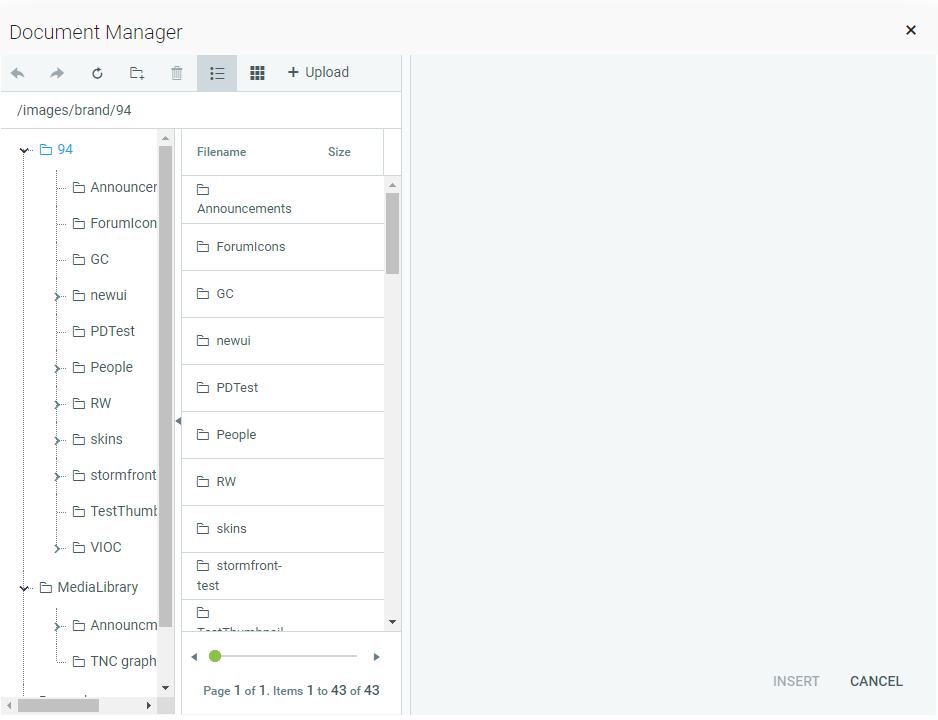
Once you have selected a document, the details window on the right side of the screen will populate, and you can add a Tooltip. Tooltips appear when a mouse is hovered over a link. You can put some brief information about the document here. This is also an Accessibility feature; the Tooltip will be read by a screen reader.
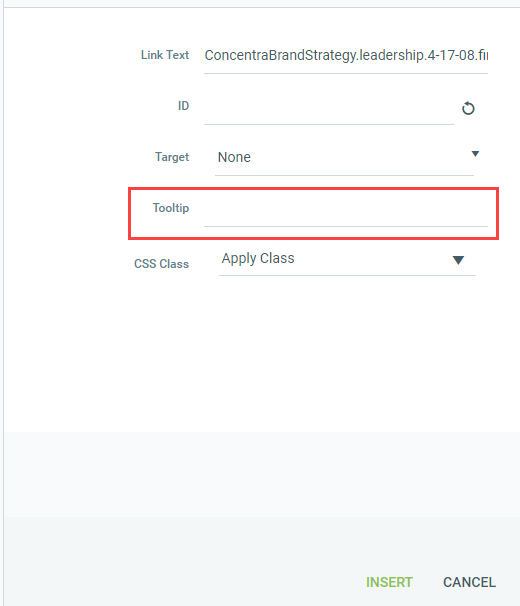
When the link details are complete, click the Insert button at the bottom right. If you have selected some text or an image before opening the Document Manager, that becomes the link text to the document. If you have not, the name of the document appears at the cursor point and is set as a hyperlink to the document.
You can also upload a new document via the Document Manager. To do so, click the Upload button in the top toolbar of the Document Manager window, navigate to the document on your computer, and upload it.
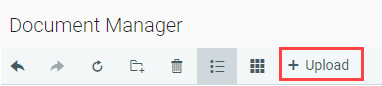
Once it is uploaded, you can select the new document and proceed as above.